What Is a SIEM? Why a Pile of Logs Is Not the Same as Watching Them
A SIEM (security information and event management) collects logs from firewalls, servers, Microsoft 365, endpoints, and similar systems, then correlates them so a person can see an attack that no single log would show. A firewall entry, a server sign-in, and a new mailbox rule can each look ordinary on their own. Together they can describe someone getting in, moving, and leaving a way back. This guide covers what a SIEM is, why a pile of logs is not the same as watching them, what monitoring looks like day to day, and five questions to ask before you hire it out.
Examples of what to collect, not a complete inventory. CISA’s small-business logging page names servers, firewalls, endpoint devices, and cloud services as places to turn logging on.
What is a SIEM?
NIST’s computer-security glossary, citing Special Publication 800-92, defines security information and event management as “a program that provides centralized logging capabilities for a variety of log types.” A second entry, from SP 800-128, describes a SIEM tool as an application that can “gather security data from information system components and present that data as actionable information via a single interface.”
In plain terms, the logs are the records. A SIEM is where selected records are brought together, compared, and turned into something a person can act on. “Actionable” is the point of the NIST wording. A folder of files is not.
CISA and partner agencies describe the setup in Best Practices for Event Logging and Threat Detection (August 2024). The full text, hosted by New Zealand’s NCSC, a co-author, recommends a protected central store for logs, then forwarding selected, processed logs to analytic tools such as a SIEM. Many network devices have little local disk. When that disk fills, older records disappear. The guide also notes that some attackers change or delete logs on the machine they are using. A copy held somewhere else is harder to erase.
A pile of logs is not a SIEM
CISA’s small-business page separates the two jobs. Logging is “the process of recording this activity on your business systems, including who accessed what, when, and from where.” Monitoring “adds a layer of oversight by reviewing those logs in real time to identify anomalies or unauthorized behavior.” Recording is not the same as looking. CISA also describes a red-team exercise in which the intrusion was found by analyzing network and log data that flagged unusual activity. The logs mattered because someone used them.
Microsoft’s guidance on centralizing security logs says the same thing from the investigation side. Logs “reveal who accessed what, when, and how.” Without centralization and consistent formats, though, “logs can create more problems than they solve.” Different formats, scattered storage, and uneven retention “make it difficult to quickly piece together a complete picture of an attack.” Bringing logs together, Microsoft writes, simplifies correlation: matching an event in one system to an event in another, instead of searching each system by hand.
| Logs left where they land | A SIEM | |
|---|---|---|
| Where the record lives | On each firewall, server, PC, or cloud service, until that device’s own storage fills or someone clears it | Selected logs are copied to a central store, then the ones that matter are available in one place |
| What you can see | One line, in one system’s format. A failed login or a new inbox rule can look routine. | Related lines from more than one system, compared with what normal looks like for that account or device |
| Who is looking | Often nobody. The record exists in case someone asks later. | Alerts are meant for a person who can tell noise from something that needs a decision |
| After an incident | Local logs may already be gone, overwritten, or deleted | A retained copy is what lets someone reconstruct what happened |
In short: Logs are the notes each system keeps. A SIEM is how those notes get read side by side. Monitoring is a person acting on what that reading shows.
How SIEM monitoring works, day to day
Buying the software is not the same as running it. Day to day, the work is a short path: collect, correlate, alert, a person reviews, and you get a clear next step.
Collect
Turn logging on for the systems that matter, and send those records to a central store. CISA’s starting list is user activity, admin actions, network traffic, application logins, and system events, from servers, firewalls, endpoints, and cloud services such as Microsoft 365. The joint logging guide says to forward selected logs to a SIEM, not every line a device can produce. Filtering is how you keep storage and noise under control.
Correlate
This is the step no single log can do. The joint guide says SIEMs “can detect anomalous activity by comparing event logs to a baseline of business-as-usual traffic and activity,” including what is “always abnormal” for a privileged account. Microsoft describes the same job as correlating events across services instead of opening each log by hand. For example, a failed remote login at an odd hour, a new inbox rule, and a large download are a story only when they are read together. Any one of those lines can look routine. That example is an illustration, not a reported incident.
Alert
The joint guide says an effective logging setup should “send alerts to the network defenders responsible for monitoring” when something notable happens, and should “reduce alert noise.” CISA tells smaller businesses to set alerts for high-risk events, such as failed logins and privilege changes, and to review logs rather than only store them. An alert nobody receives is another file.
A person reviews
The same guide lists patterns worth a look: a sign-in at an odd hour, an account touching systems it never uses, one address trying many usernames, a large download, or logs being cleared. It then says those patterns “could be legitimate behaviour and not malicious activity,” and that “further investigation by a network defender is required.” Good logs help that person tell a false positive from a real event. The software does not close the question.
A clear next step
An alert that nobody turns into a decision is still just a log. The next step might be to disable an account, call the person, check a firewall change, or mark the alert as noise and tune the rule so it does not fire on ordinary work. That judgment is ordinary practice. It is not a timer, and it is not a promise about how fast anyone will answer.
Retention, and who can delete the record
The joint guide says to keep logs long enough to support an investigation, and that default retention is often too short. How long depends on the risk to the system and on rules that already apply to you. There is no single number that fits every company. CISA says to retain logs according to your own policies and compliance needs, and to protect them from unauthorized access or deletion. A SIEM that an attacker can wipe is not a record of what they did.
5 questions to ask about a SIEM
These are practical questions about running a SIEM, not a scored checklist from NIST or CISA. Each one follows from the points above.
- Which systems actually send logs? Firewalls, servers, Microsoft 365, and endpoints are a sensible start. Ask what is left out, including cloud admin activity, not only the machines in the closet.
- Who looks, and what do they do next? A console with nobody responsible is logging, not monitoring. Ask who reviews an alert and what decision they are expected to make.
- How is noise tuned? The joint guide talks about cutting alert noise and telling false positives from true positives. Ask how rules are adjusted for your environment, rather than left at a default that flags ordinary work.
- How long are logs kept, and who can delete them? Ask for a retention period that matches your risk and any rules you already follow. Ask how the copy is protected if someone clears logs on a PC or a firewall.
- What do you receive after a review? A raw export is hard to use. A short note is not: what happened, what was done, and what is still open.
A password found for sale is a lead, not proof anyone used it. Sign-in and admin logs are how you check. Our dark web monitoring post covers the lead. A SIEM is one place those sign-in logs can be watched alongside everything else.
How LTS can help
LTS Technology, in Bakersfield, monitors and manages SIEM for companies. We deploy and tune it, in the cloud or on premises. We bring in the logs that matter for your environment, alert on them, and write up what an auditor or a manager can actually use: what happened, what we did, and what is still open. We tune noisy sources so the alerts are worth reading, and we agree up front who is notified when one needs a person.
That ongoing watching and alert triage is part of our cybersecurity services. Microsoft 365 log coverage fits with our Microsoft 365 services. The day-to-day work can also sit with managed IT support. We do this with your internal IT, not instead of it.
Not sure whether your logs are being watched or only stored? Talk with us about SIEM monitoring.
Related: Cybersecurity services · Managed IT support · Microsoft 365 services · Dark web monitoring · Contact

Dark Web Monitoring: How Stolen Logins Get Sold, and What to Do When Yours Show Up
Microsoft’s Digital Defense Report 2025 puts it plainly: “Increasingly, adversaries aren’t breaking in, they’re logging in.” Those logins often come from dark web data leaks: passwords stolen by one criminal and sold to another. Dark web monitoring watches those leaks for your company’s accounts so you can change the locks before someone uses the key. Here is how the trade works, what dark web monitoring can and can’t catch, and what to do when a hit comes in.
Sources: Verizon 2026 Data Breach Investigations Report (39%, 95 days); Mandiant M-Trends 2026 (22 seconds).
What leaks, and where it comes from
These are the leaks dark web monitoring looks for:
- Breach dumps: passwords stolen from another website. If an employee reused a work password there, the dump holds a working key to your business.
- Phishing: logins typed into fake sign-in pages.
- Infostealer logs: malware that copies saved passwords and session cookies from an infected computer. Europol’s IOCTA 2025 says stolen cookies and tokens can let criminals into apps “as an authenticated user.” CISA and the FBI say the LummaC2 infostealer can take MFA details “without immediate detection.”
When the Justice Department seized domains used to run LummaC2 in May 2025, it said the FBI had identified at least 1.7 million instances of the malware being used to steal this kind of information. When police took down Genesis Market in 2023, Eurojust said it was advertising credentials stolen from about 460,000 devices. Takedowns help, but Verizon’s 2026 DBIR says infostealers “have continued to persist and evolve even in the face of various actions taken by law enforcement.”
How attackers operate: the handoff chain
Much ransomware isn’t one gang doing everything. Microsoft describes a division of labor: “initial operators deploy the malware, access brokers monetize the stolen data, and users such as ransomware groups use it to gain footholds in enterprise environments.”
Based on the Microsoft Digital Defense Report 2025, CISA #StopRansomware advisories, and Europol’s IOCTA 2025 and 2026.
Initial access brokers
The Justice Department describes an initial access broker as “a person who specializes in gaining unauthorized access to computer networks and systems of corporations and organizations and selling that access to other cyber threat actors such as ransomware groups.” That definition comes from the March 2026 sentencing of Aleksei Volkov, who sold access used by the Yanluowang ransomware group and others. He received 81 months in prison.
CISA’s #StopRansomware advisories show the same pattern. Medusa actors “typically recruit initial access brokers (IABs) in cybercriminal forums and marketplaces,” and most brokers “appear to be willing to work for multiple variants at the same time.” For Akira, the variant reported most often to the FBI’s IC3 in 2025, CISA says actors got in through VPNs “without multifactor authentication (MFA) configured,” and sometimes through compromised VPN credentials, “potentially by using initial access brokers.”
In broker listings reviewed for Verizon’s 2026 DBIR, 44% of connection types were VPN, followed closely by remote desktop tools such as RDP.
Why the handoff matters to you
Speed. Mandiant’s M-Trends 2026 found the median handoff time fell from more than 8 hours in 2022 to 22 seconds in 2025. CrowdStrike’s 2026 Global Threat Report puts average eCrime “breakout time” at 29 minutes. Treat every dark web monitoring alert as same-day work.
Small firms are targets too: in Verizon’s data, about 96% of ransomware victims with a known size had fewer than 1,000 employees.
Why splitting the work makes attackers harder to catch
Splitting the crime among specialists also muddies the trail:
- The ransomware name doesn’t tell you who broke in. Microsoft Threat Intelligence wrote that “as ransomware deployment becomes a gig economy, it has become more difficult to link the tradecraft used in a specific attack to the ransomware payload developers.”
- Every affiliate works differently. A joint CISA and FBI advisory on LockBit said that because of “the large number of unconnected affiliates,” LockBit attacks “vary significantly” in their tactics.
- Stolen data changes hands. Europol says data may be resold several times, which “can result in multiple actors launching attacks against the same victim.”
- Traffic is disguised. Europol’s IOCTA 2026 says layered anonymization is “complicating source attribution and delaying the investigation due to numerous additional cross-border judicial requests.”
Cases still get made, but the Volkov case took indictments in two federal districts, an arrest in Italy, and an extradition. Your better defense is making stolen logins useless early, and dark web monitoring helps with the “early” part.
Why dark web monitoring matters
Dark web monitoring checks breach dumps, criminal forums, and paste sites for your company’s logins and alerts you when they appear. Why act on those alerts:
- Leaks often come first. Verizon’s 2026 DBIR found that all but 27% of ransomware victims had an infostealer infection or credential leak in the year before they were publicly named; for half of those, within 95 days.
- Small businesses leak too. Small organizations had a median of seven credential leak events a year; larger ones around 20.
- Attackers try leaked usernames. Microsoft found that 85% of usernames targeted in password spray attacks appeared in known credential leaks.
- One infected laptop is a warning. Microsoft says defenders “must treat infostealer infections as precursors to wider compromise, not isolated malware events.”
Dark web monitoring you may already own
NIST requires a password change when there is evidence of compromise. On Microsoft 365, Microsoft Entra ID Protection includes a leaked credentials detection: Microsoft scans dark web forums, breach dumps, paste sites, and seized data, and flags a user only when the leaked password matches the current one. Check your license and setup (on-premises accounts need password hash sync), and make sure someone reads the alerts.
What dark web monitoring can’t see. It spots exposure, not every breach.
- Exploited vulnerabilities were the top way in for breaches in Verizon’s 2026 DBIR (31%), ahead of credential abuse (13%). No leak alert flags an unpatched VPN.
- Some victims get no warning. That same 27% of ransomware victims in Verizon’s analysis showed no infostealer or credential leak beforehand.
- Europol says criminals are moving to “smaller, invitation-only spaces” and private encrypted channels. No dark web monitoring service sees everything.
- Some listings are fake or recycled from old leaks, so every hit needs checking.
- Stolen session cookies can work without the password, so a reset alone may not end access.
When you get a dark web monitoring hit: 6 steps
First, confirm what the dark web monitoring hit shows: which account, whether the password is current, and whether it looks like an infostealer log (an infected device) or an old breach elsewhere.
- Reset the password and kill sessions. Reset from a known-clean device, then revoke active sessions. Microsoft says revoking sessions “immediately invalidates any active access using the stolen credentials.” Reissue app passwords too; a reset doesn’t revoke them.
- Enforce or verify MFA, phishing-resistant where possible. Confirm MFA is required, including for VPN and webmail. Remove MFA methods you don’t recognize. Microsoft says MFA blocks over 99% of unauthorized access attempts. CISA calls phishing-resistant MFA, such as FIDO2 security keys, “the gold standard.”
- Check for password reuse. Is that password, or a variation, used anywhere else? Change every copy. See our strong password guide.
- Investigate sign-in logs and mailbox rules. Look for sign-ins from unfamiliar places or devices. In Microsoft 365, check for inbox rules that forward or hide mail, new external forwarding, unfamiliar app consents, and changed admin roles. Microsoft lists these as warning signs; they often set up business email compromise.
- Check the device for infostealer malware. If the dark web monitoring hit looks like an infostealer log, the leaking computer is the real problem. Scan it; isolate or rebuild it if anything turns up. Eurojust’s advice to Genesis Market victims: remove the malware first, then change passwords. Include personal devices; Verizon notes work credentials are common on them.
- Escalate to incident response when needed. Escalate for unexplained sign-ins, new mailbox rules, a confirmed infostealer, or any admin or VPN account. Mandiant advises treating routine malware alerts as “high-priority indicators of an impending secondary intrusion.” Preserve logs and report to the FBI’s IC3.
Make leaked logins less useful
Dark web monitoring tells you a key was copied. These controls make a copied key harder to use:
- MFA on every account, phishing-resistant for admins and finance
- Unique passwords kept in a password manager
- Dark web monitoring alerts assigned to a person
- MFA on every VPN and remote access path
- No remote desktop exposed directly to the internet
- Internet-facing devices patched first
- Endpoint detection and response (EDR) on every computer
- Sign-in and mailbox logs kept long enough to investigate
- Limits on work logins from unmanaged personal devices
The FBI’s 2025 IC3 report recommends MFA “particularly for webmail, virtual private networks, and accounts that access critical systems.” Patching lags: Verizon found organizations fully fixed only 26% of vulnerabilities on CISA’s Known Exploited Vulnerabilities list in 2025.
How LTS can help
We help businesses in Bakersfield and across Kern County catch exposed logins early and respond fast, working alongside any internal IT staff.
- Dark web monitoring setup: We can help set up leaked-login alerts, including tools already in Microsoft 365, and make sure someone acts on every hit.
- Responding to dark web monitoring hits: Resets, session revocation, sign-in and mailbox-rule reviews, and device checks.
- MFA and access hardening: MFA rollout, conditional access, and VPN and remote access reviews through our cybersecurity services.
- Endpoint detection: Managed EDR on platforms such as CrowdStrike or SentinelOne, plus patching and help desk through our managed IT support.
- Incident response coordination: Containment, forensics coordination, and restore work when it’s more than one password.
Not sure whether your logins have leaked, or who would act if they did? Talk to an LTS engineer about dark web monitoring and a response plan.
Related: Business email compromise · Strong passwords · AI-enabled attacks · Cybersecurity services · Contact

SPF, DKIM, and DMARC Explained: Stop Spoofing and Keep Your Email Delivering
If someone can send email that says it comes from your domain, they can bill your customers, redirect vendor payments, or phish your staff in your name. DMARC, working with SPF and DKIM, is how you tell the rest of the internet which mail really comes from you and what to do with everything else. Gmail and Yahoo have required these records from bulk senders since 2024, and Outlook.com followed in 2025. This guide covers what each record does, how they fit together, what the big mailbox providers require, and a safe path from monitoring to blocking.
Sources: Google email sender guidelines FAQ, Microsoft Outlook.com high-volume sender requirements, Yahoo Sender Hub, and RFC 7208 (SPF).
Why email needs SPF, DKIM, and DMARC
Email was designed without sender checks. Microsoft’s email authentication overview says SMTP “makes no effort to validate that the message sender is who they claim to be.”
Every message has two sender addresses. The envelope sender (the MAIL FROM address) is used between mail servers, and recipients never see it. The From address is the one people see in Outlook or Gmail. A criminal can put their own domain in the envelope and your domain in the From line. Microsoft calls that “a classic example of spoofing.”
That matters for three reasons:
- Spoofing: customers, vendors, and staff receive convincing fake mail that appears to come from you.
- Business email compromise (BEC): Microsoft notes that spoofed senders “are commonly used in business email compromise (BEC), phishing, and other email attacks.” A fake invoice or payment-change request is more convincing when the From address is exactly right. Our business email compromise guide covers how those scams work.
- Deliverability: Google says authenticated messages “are less likely to be rejected or marked as spam,” and warns that unauthenticated mail to Gmail “might be marked as spam or rejected.”
What SPF, DKIM, and DMARC each do
SPF: which servers can send for you
Sender Policy Framework, defined in RFC 7208, is a DNS TXT record that lists the servers and services allowed to send mail for your domain. The receiving server checks the sending server against that list. SPF checks the envelope (MAIL FROM) domain, not the From address people see.
Example only (example.com sends through Microsoft 365 and one outside mailer):
example.com. TXT "v=spf1 include:spf.protection.outlook.com include:_spf.mailer.example -all"Two rules catch a lot of people out:
- One SPF record per domain. RFC 7208 says a domain “MUST NOT have multiple records” for SPF. If a receiver finds two, the check returns a permanent error (“permerror”). When you add a new sender, edit the existing record. Don’t publish a second one.
- No more than 10 DNS lookups. Each
include,a,mx,ptr,exists, andredirectcounts toward a limit of 10 per check, and going over is also a permerror.ip4andip6entries don’t count. Includes can contain more includes, so, as Microsoft’s SPF guide points out, having fewer than 10 include statements doesn’t guarantee fewer than 10 lookups.
SPF also breaks when mail is forwarded, because the forwarding server isn’t on your list. That’s one reason SPF alone isn’t enough.
DKIM: a signature on every message
DomainKeys Identified Mail, defined in RFC 6376, adds a digital signature to each outgoing message. Your mail system signs with a private key. The matching public key is published in DNS under a “selector” name, at selector._domainkey.yourdomain. Receivers use it to confirm which domain signed the message and that the signed parts weren’t changed in transit. The signature travels with the message, so DKIM usually survives forwarding.
Example only (the key is shortened):
selector1._domainkey.example.com. TXT "v=DKIM1; k=rsa; p=MIIBIjANBgkqh...IDAQAB"Gmail requires DKIM keys of at least 1024 bits and recommends 2048, and Yahoo says the same. On its own, a DKIM pass only proves that some domain signed the message. That domain doesn’t have to match your From address. Checking that match is DMARC’s job.
DMARC: your policy, plus reports
DMARC, defined in RFC 7489, is a TXT record at _dmarc.yourdomain. It does three things. It checks that SPF or DKIM passed for the same domain the reader sees in the From line. It tells receivers what to do when that check fails. And it asks receivers to send you reports.
Example only (monitoring mode):
_dmarc.example.com. TXT "v=DMARC1; p=none; rua=mailto:[email protected]"The policy (p=) has three settings: none (monitor only), quarantine (treat failures as suspicious, usually meaning the spam folder), and reject (refuse failing mail). The rua= address receives aggregate reports. These are XML summaries, typically sent once a day, showing which IP addresses sent mail as your domain and whether that mail passed.
SPF vs DKIM vs DMARC at a glance
| SPF | DKIM | DMARC | |
|---|---|---|---|
| What it checks | Is the sending server allowed to send for the envelope (MAIL FROM) domain? | Does the message carry a valid signature from the signing domain, unchanged in transit? | Did SPF or DKIM pass for a domain that matches the From address people see? |
| Where it lives | One TXT record on your domain | A public key at selector._domainkey (TXT, or CNAME records in Microsoft 365) |
A TXT record at _dmarc |
| What it stops | Unlisted servers using your envelope domain | Altered messages and forged signatures for your domain | At quarantine or reject: unauthenticated mail using your exact domain in the From line. Reports show who sends as you. |
| What it doesn’t | Doesn’t check the visible From address. Breaks on forwarding. Each subdomain needs its own record. | Doesn’t require the signing domain to match the From address | Lookalike domains, fake display names, or a real mailbox that’s been taken over. At p=none it blocks nothing. |
Alignment: how DMARC ties SPF and DKIM together
A message passes DMARC when at least one of SPF or DKIM passes and the domain it passed for “aligns” with the From domain. There are two alignment modes:
- Relaxed (the default): the organizational domains must match. A message from
[email protected]signed bymail.example.compasses. - Strict: the domains must match exactly, so that same message fails DKIM alignment.
Third-party mailers usually run into trouble here. Microsoft’s DMARC guide describes the common case: a marketing or billing service sends as you, SPF passes for the service’s own bounce domain, and DMARC still fails because nothing lines up with your domain. The fix is to have the service DKIM-sign with your domain, or to set its MAIL FROM (return-path) to your domain or a subdomain.
In short: SPF says where your mail can come from. DKIM proves who signed it. DMARC checks that one of them matches the address your reader sees, then applies your policy and reports back.
What DMARC doesn’t stop
DMARC protects your exact domain. The specification treats display-name tricks as out of scope and says it doesn’t address “visually similar domain names,” meaning lookalikes like examp1e.com. It also can’t help when a real mailbox is taken over. A criminal sending from your own account is sending through your own servers, so the mail passes. Those risks call for MFA, sign-in monitoring, calling to verify payment changes, and good email security filtering.
Gmail, Yahoo, and Outlook.com bulk-sender requirements
Google and Yahoo started enforcing new sender rules in February 2024, and Microsoft followed for Outlook.com in May 2025. Here is what each provider’s own pages say.
Google (personal Gmail accounts)
- Bulk threshold: anyone who sends “close to 5,000 messages or more” to personal Gmail accounts within 24 hours, counting all mail from the same primary domain. Google says anyone who meets that bar once is “permanently considered” a bulk sender.
- All senders (from February 1, 2024): SPF or DKIM, valid forward and reverse DNS, TLS, and a spam rate reported in Postmaster Tools below 0.3%.
- Bulk senders: SPF and DKIM, a DMARC record (a policy of none is allowed), a From domain aligned with the SPF or DKIM domain, and one-click unsubscribe on marketing and subscribed messages.
- Enforcement: Google says that starting November 2025 it is “ramping up its enforcement,” and that failing messages will see disruptions “including temporary and permanent rejections.”
- Scope: the rules apply to mail sent to personal Gmail accounts, not to Google Workspace business accounts.
Sources: Google email sender guidelines and sender guidelines FAQ.
Yahoo (including AOL)
- Bulk threshold: someone sending “a significant volume of mail.” Yahoo says it “will not specify a volume threshold.”
- All senders: SPF or DKIM, a spam rate below 0.3%, valid forward and reverse DNS, and compliance with RFC 5321 and RFC 5322.
- Bulk senders: SPF and DKIM, a valid DMARC policy of at least p=none that passes, and a From domain aligned with SPF or DKIM. Relaxed alignment is acceptable, and a
ruareporting address is “strongly recommended.” Marketing mail needs one-click unsubscribe, honored within 2 days. - Enforcement: began February 2024 and rolled out gradually. Unsubscribe enforcement began June 2024.
Sources: Yahoo sender requirements and Yahoo Sender Hub FAQ.
Microsoft (Outlook.com, Hotmail.com, and Live.com addresses)
- Bulk threshold: domains sending more than 5,000 emails per day to Microsoft’s consumer addresses.
- Requirements: SPF must pass, DKIM must pass, and DMARC must be at least p=none and aligned with SPF or DKIM, “preferably both.”
- Enforcement: announced April 2, 2025, starting May 5, 2025. Microsoft’s April 29 update says failing messages are rejected with the error “550; 5.7.515 Access denied.” Some of Microsoft’s wording still describes sending them to Junk first, so plan for rejection.
Source: Microsoft’s Outlook.com high-volume sender announcement. Microsoft says the rules apply to Outlook.com, its consumer email service.
Under these volumes? All three providers still expect basic authentication, and Microsoft’s FAQ says “all senders benefit” from it. Also note that p=none satisfies the rule but doesn’t block anything. CISA’s BOD 18-01 guidance calls p=none “a temporary policy setting” that “is only meaningful when coupled with reporting.”
A DMARC setup path, step by step
Microsoft’s and Google’s guidance agree on the order: set up SPF and DKIM first, publish DMARC at p=none, then tighten it slowly while you read the reports.
1. List everything that sends as your domain
Start with Microsoft 365 or Google Workspace, then add your website forms, CRM and newsletter tools, invoicing and accounting software, help desk, scanners, and any business apps that send notifications. Microsoft notes that in complex organizations it’s hard to find every source, which is exactly what the reports in step 5 help with.
2. Build a single SPF record
- Start with your provider’s include:
include:spf.protection.outlook.comfor Microsoft 365, orinclude:_spf.google.comfor Google Workspace. - Add each other sending service to the same record, using the include or IP ranges that service documents.
- Count lookups. If you’re over 10, move a service to a subdomain (it gets its own record and its own limit of 10), replace a stable vendor include with its published IP addresses, or retire services you no longer use. Microsoft warns against replacing its own include with IP addresses, because those addresses change frequently.
- Finish with an
allrule. Microsoft recommends-all(hard fail) for Microsoft 365 domains that also use DKIM and DMARC. Google’s examples use~all(soft fail).
3. Turn on DKIM signing
- Microsoft 365: Microsoft says no DKIM signing with your custom domain happens until you set it up. In the Microsoft Defender portal, go to Email & collaboration > Policies & rules > Threat policies > Email authentication settings, then the DKIM tab. Microsoft gives you two CNAME records (
selector1._domainkeyandselector2._domainkey). Publish them with your DNS host, then turn on “Sign messages for this domain with DKIM signatures.” New keys default to 1024 bits, and PowerShell can create or rotate to 2048-bit keys. See Set up DKIM in Microsoft 365. - Google Workspace: In the Admin console, go to Apps > Google Workspace > Gmail > Authenticate email. Generate a key (Google recommends 2048-bit if your DNS host supports it), publish the TXT record at
google._domainkey, then click Start authentication. Google says DKIM can take up to 48 hours to start working after you add the key. See Set up DKIM in Google Workspace. - Other senders: turn on each service’s custom-domain or DKIM option so it signs with your domain, not its own.
4. Publish DMARC at p=none with reporting
Google advises setting up SPF and DKIM at least 48 hours before DMARC. Then publish a monitoring record like the example earlier, with a rua address you actually check. Raw reports are compressed XML files. Microsoft suggests a reporting service or some automation to make them readable.
5. Read the DMARC reports and fix what you find
Each aggregate report lists sending IP addresses, message counts, and the SPF and DKIM results. Sort what you find into three groups:
- Legitimate and aligned: nothing to do.
- Legitimate but failing: often a third-party mailer that uses its own bounce domain or doesn’t sign with yours. Turn on DKIM with your domain at that service, set a custom return-path, or move it to a subdomain.
- Not yours: spoofing attempts. These are what the stricter policies will block.
Google’s rollout guidance is to review reports daily and stay at none for at least a week. Give it longer if you have many senders.
6. Move to quarantine, then reject
Microsoft’s stated goal is p=reject for all your domains, reached in stages: none, then quarantine, then reject. Microsoft suggests starting with low-volume subdomains and leaving the parent domain for last.
Example only (the later stages):
_dmarc.example.com.  TXT  "v=DMARC1; p=quarantine; pct=25; rua=mailto:[email protected]"
_dmarc.example.com.  TXT  "v=DMARC1; p=reject; rua=mailto:[email protected]"
RFC 7489 defines a pct tag to apply the policy to only part of the failing mail during rollout. Microsoft suggests steps of 10, 25, 50, 75, and 100, and Google’s example starts at 5. Treat pct as a rough ramp, not a precise dial (see the note below).
Take care with reject. The newest standard (RFC 9989, described below) warns that domains whose users post to internet mailing lists “SHOULD NOT” publish p=reject. Domains that go ahead anyway should spend at least a month at none and an equal period at quarantine first, and must sign with DKIM rather than rely on SPF alone. For federal agencies, CISA’s BOD 18-01 required reject within one year of the 2017 directive and called it “the strongest protection against spoofed email.”
7. Lock down domains you don’t send from
Parked domains can be spoofed too. Microsoft recommends an SPF record of v=spf1 -all, a DMARC record of v=DMARC1; p=reject;, and no DKIM records for domains that never send mail.
A new DMARC standard: RFC 9989 (May 2026)
In May 2026 the IETF published RFC 9989, known during its development as “DMARCbis.” It makes DMARC a Standards Track protocol and obsoletes RFC 7489, with RFC 9990 for aggregate reports and RFC 9991 for failure reports. Records still start with v=DMARC1. The new standard removes pct, because in practice it “was usually not accurately applied” except at 0 or 100, and adds a t=y test flag and an np policy for subdomains that don’t exist. The Google and Microsoft setup pages we checked still describe pct, so review your record the next time you change it.
How LTS can help
We set up and look after email authentication so your domain is protected without blocking your own mail. We can handle it for you or work alongside your IT staff.
- Email authentication review: We check your SPF, DKIM, and DMARC records, count SPF lookups, and list every service that sends as your domain.
- SPF and DKIM setup: We set up signing in Microsoft 365 or Google Workspace and in the third-party tools that send for you.
- DMARC rollout: We read the reports, fix failing senders, and move your policy from none to quarantine to reject at a pace your mail flow can handle.
- Bulk-sender checks: If you send newsletters or marketing mail, we check it against the current Gmail, Yahoo, and Outlook.com requirements.
- Ongoing care: Monitoring and changes as part of our cybersecurity services, Microsoft 365 services, and managed IT support.
Not sure what your domain publishes today? Request an email authentication review.
Related: Business email compromise · Cybersecurity services · Microsoft 365 services · Contact

Windows 10 ESU Year 1 Ends Oct 13: Pay $122 per PC or Finish Windows 11?
Commercial Windows 10 ESU Year 1 coverage ends on October 13, 2026. After that date, a Windows 10 PC at work only keeps getting security updates if it’s covered for Year 2 of Extended Security Updates, either paid or through one of the cloud options below. Microsoft’s list price for Year 2 works out to $122 per device, and a PC that never had Year 1 needs both years: $183. Here is how to count what you still have, spot the PCs that can’t move to Windows 11, and decide which ones are worth paying for.
Sources: Microsoft Lifecycle FAQ – Extended Security Updates (dates) and Microsoft’s Windows 10 ESU program page ($61 for Year 1, doubling each year).
What Windows 10 ESU covers, and what it costs
Windows 10 reached end of support on October 14, 2025. ESU is Microsoft’s paid bridge: critical and important security updates for up to three years. It doesn’t add features, fix non-security bugs, or include general technical support. It covers Windows 10 Enterprise, Education, and Pro used commercially, and the PC has to be on version 22H2. LTSC editions follow their own lifecycles and aren’t part of this program.
| Windows 10 ESU year | Coverage ends | US list price per device |
|---|---|---|
| Year 1 | October 13, 2026 | $61 |
| Year 2 | October 12, 2027 | $122 (plus $61 for Year 1 if you never bought it) |
| Year 3 (final) | October 10, 2028 | $244 |
The fine print matters for budgeting:
- It’s cumulative. You can’t skip a year. Microsoft says a Year 2 purchase requires Year 1 too, so a first-time buyer pays both.
- Whole years only. No six-month terms. The minimum purchase is one license.
- How it’s bought. Through Microsoft Volume Licensing or a Cloud Solution Provider (CSP) partner. You activate each PC with a Multiple Activation Key (MAK) from the Microsoft 365 admin center.
- List price, not your quote. Microsoft publishes $61 for Year 1 and says the price doubles each year; $122 and $244 are that math. Your reseller’s quote is what you’ll actually pay. Microsoft also announced a discounted option for PCs whose updates are managed with Intune or Windows Autopatch, so ask about it if you use those tools.
Step 1: Count the Windows 10 PCs you still have
Before you price Windows 10 ESU, get an accurate count. Use more than one source, because each tool misses something: Intune misses PCs that were never enrolled, and Active Directory keeps old computer accounts long after the hardware is gone.
- Intune: Devices > All devices, filter to Windows, and sort by OS version. Windows 10 builds sit below 10.0.22000 (22H2 is 10.0.19045); Windows 11 starts at 22000. Export the list.
- Microsoft Entra admin center: Devices > All devices shows OS type and version, and Download devices exports a CSV. Check the activity date so you don’t count retired PCs.
- Your RMM or inventory tool: Filter on the operating system name. Include machines that haven’t checked in recently, since those are often the forgotten ones.
- Active Directory (PowerShell):
Get-ADComputer -Filter 'OperatingSystem -like "Windows 10*"' -Properties OperatingSystem,OperatingSystemVersion,LastLogonDate | Select-Object Name,OperatingSystemVersion,LastLogonDate - One PC at a time: press Windows + R and run
winver, or open Settings > System > About. In PowerShell:Get-CimInstance Win32_OperatingSystem | Select-Object Caption, Version, BuildNumber
For PCs you already enrolled in Windows 10 ESU Year 1, run slmgr.vbs /dlv from an elevated prompt. Microsoft’s instructions say the output lists the ESU program name with a License Status of Licensed. That tells you which machines need a Year 2 key, and which ones have been missing patches since last October.
Step 2: Find the PCs that can’t run Windows 11
Microsoft’s Windows 11 requirements are the test:
- A compatible 64-bit processor (1 GHz or faster, two or more cores) on Microsoft’s supported processor list
- 4 GB of memory and 64 GB of storage
- UEFI firmware that is Secure Boot capable
- TPM version 2.0
- DirectX 12 graphics with a WDDM 2.0 driver, and a 720p display of 9 inches or more
The fastest way to check a whole fleet is Intune’s Windows feature update device readiness report (Reports > Windows updates > Reports). Pick Windows 11 as the target. Devices marked Replace device can’t upgrade, and the report also flags apps and drivers likely to cause trouble. It relies on Windows diagnostic data, so devices that don’t send it show as Unknown. For a single Pro PC, Microsoft’s PC Health Check app gives the same yes/no.
To spot-check a machine from an elevated PowerShell window:
Get-Tpmshows whether a TPM is present and ready.Get-CimInstance -Namespace root/cimv2/security/microsofttpm -ClassName Win32_Tpm | Select-Object SpecVersionshows the TPM version.Confirm-SecureBootUEFIreturns True (on), False (supported but off), or “not supported” on older BIOS systems.
Before you write a PC off: a TPM or Secure Boot “fail” sometimes just means the feature is switched off in firmware. An unsupported processor is different. No setting fixes that, so those PCs are your real Windows 10 ESU-or-replace list.
Step 3: Pay for Windows 10 ESU or replace? A decision table
| If the PC… | Lean toward |
|---|---|
| Passes the Windows 11 checks and its apps work | Upgrade now. Skip ESU. |
| Passes, but a business app isn’t confirmed on Windows 11 yet | Windows 10 ESU Year 2 for those PCs only, with a firm date to finish testing |
| Fails on CPU or TPM and is near the end of its life anyway | Replace. Use ESU only if the new PC can’t be ready in time. |
| Runs equipment or software the vendor supports only on Windows 10 | ESU while you get a written upgrade plan from the vendor |
| Is mostly a doorway to apps that could run in the cloud | Look at Windows 365 or Azure Virtual Desktop (see below) |
Do the Windows 10 ESU math per device, not per company. Twenty PCs that never had Year 1 cost 20 × $183 = $3,660 at list for coverage through October 12, 2027, and Year 3 would add $244 each. Put that next to the price of replacing the same machines before you decide.
The cloud route Microsoft documents
Microsoft lists ESU at no additional cost for Windows 10 virtual machines in Windows 365 Cloud PCs, Azure Virtual Desktop, and other Azure services. Physical Windows 10 PCs used to reach Windows 365 Enterprise Cloud PCs (or Windows 365 Flex Cloud PCs in dedicated mode) can also be entitled to Windows 10 ESU. The conditions: the PC must be Microsoft Entra joined or hybrid joined, the user must sign in with the same account at least once every 22 days, and IT must deploy a policy that turns on the ESU subscription check. That route only makes sense if Cloud PCs fit how your staff already work.
Common Windows 10 ESU mistakes
- Buying keys for PCs that aren’t on 22H2 with the prerequisite updates Microsoft lists (KB5066791, then KB5072653)
- Pricing Year 2 alone when those PCs never had Year 1
- Assuming ESU includes troubleshooting help. It covers only activation, installation, and problems caused by the updates themselves.
- Reimaging enrolled PCs without planning for the extra MAK activations that uses (Microsoft documents how to request more)
How LTS can help
Our job here is to make the October 13 decision with real numbers, not guesses.
- Windows 10 inventory review: We reconcile Intune, Entra, RMM, and Active Directory so you get one accurate count.
- Windows 11 readiness: We run the readiness checks and sort each PC into upgrade, ESU, or replace.
- Windows 10 ESU setup: We confirm prerequisites, then install and verify MAK keys on the PCs that need another year.
- Upgrades and replacements: We schedule the work around your business hours, as part of our managed IT services.
- Help for in-house IT teams: With co-managed IT, we take on the inventory and rollout while your staff keeps the day-to-day.
Not sure how many Windows 10 PCs you have left? Request a review and we’ll help you build the list before October 13.
Related: Managed IT services · Co-managed IT · Full service map · Contact

Is Microsoft 365 Backed Up? What Microsoft Keeps, and What You Still Need
Is your data backed up just because it lives in Microsoft 365? Not in the way most people mean. Microsoft keeps the service running and keeps deleted items for a while, but recycle bins, retention and litigation hold each have limits, and none of them is a point-in-time Microsoft 365 backup you can roll back to. Here is what Microsoft keeps by default, where the gaps are, and what a real restore test should prove.
Sources: Microsoft Learn: Recoverable Items folder, delete or restore mailboxes, and Microsoft Support: SharePoint recycle bin.
Who is responsible for Microsoft 365 backup?
Microsoft’s shared responsibility model is plain about it: “you own your data and identities.” For software-as-a-service like Microsoft 365, the responsibility matrix leaves customer data, identities and users, and configuration with the customer. Microsoft handles the physical datacenters, hosts, network, and operating systems. Among the duties Microsoft says you always keep: “You’re responsible for your data, including data classification, data protection…”
Microsoft does build in redundancy. Its Microsoft 365 Backup FAQ draws the line, though: a disaster recovery copy “maintains the current state of content, not any historical versions from prior points in time.” If something deletes or encrypts your files, the replicated copy has the same damage. The same FAQ says Microsoft’s view on shared responsibility for data protection hasn’t changed.
Microsoft’s consumer Services Agreement puts it more bluntly: “We recommend that you regularly backup Your Content and Data.” Business tenants run under separate commercial terms, but the advice is sound either way.
What Microsoft keeps by default
Before you shop for a Microsoft 365 backup, know what the service already keeps and for how long:
| What was lost | Default window | What happens after |
|---|---|---|
| Email removed from Deleted Items | 14 days (admins can raise it to 30) | Purged, unless a hold applies |
| Deleted user account (and its mailbox) | 30 days | Account and mailbox permanently deleted, unless a hold was applied first |
| Exchange license removed from a user | 30 days | Mailbox data deleted and can’t be recovered |
| File deleted in SharePoint or OneDrive | 93 days across both recycle bin stages | Permanently deleted |
| A deleted user’s OneDrive | 30 days (admins can set 30 to 3,650 days) | Moves to the site collection recycle bin for 93 days; restore needs PowerShell |
| A whole OneDrive damaged by bad changes | “Restore your OneDrive”: any point in the last 30 days | This feature can’t go back further |
Two details catch people out. Removing a license doesn’t start OneDrive cleanup, but an unlicensed OneDrive is moved to a paid archive on its 93rd unlicensed day. And retention policies take priority over the normal OneDrive process, so content can be deleted sooner or kept longer than the defaults above.
Retention and holds are not a Microsoft 365 backup
Litigation hold preserves deleted items and the original versions of edited items. That is valuable for legal and compliance work. Microsoft’s Backup FAQ notes that holds are “optimized for export (for example, via eDiscovery), not for mass restore.” You can prove an email existed. Putting 5,000 files back where they were, as they were last Tuesday, is a different job.
Version history lets a user roll back one file. Microsoft points out that this doesn’t scale when an admin has to recover a large ransomware incident, and versions can run out depending on the version limit.
Recycle bins only help if someone notices in time. A file deleted quietly in January is gone by May.
The test: a Microsoft 365 backup lets you choose a date and time before the damage and put mail, files, or a whole site back as they were at that moment. If a tool can’t do that, it’s retention, not backup.
Three common ways data goes missing
1. A user is deleted, or a license is removed
Offboarding usually goes like this: license removed, account deleted, done. That starts a 30-day clock on the mailbox. Microsoft’s guidance on inactive mailboxes is to apply a retention policy or hold before deleting the account. Then confirm the hold is actually applied, or the mailbox won’t be kept.
2. Ransomware or a bad sync overwrites OneDrive files
When ransomware or a misbehaving sync tool rewrites files on a laptop, the OneDrive client uploads those changes like any other edit. “Restore your OneDrive” can roll one person’s OneDrive back up to 30 days. That helps for one user who reports the problem quickly. It’s harder across dozens of accounts, for shared SharePoint libraries, or when nobody notices for five weeks.
3. A departed employee’s mailbox and OneDrive
By default, the manager of a deleted user gets access to that person’s OneDrive and receives emails warning before it’s deleted. If no manager is set in Entra ID and no secondary owner is configured in SharePoint, nobody gets access or warnings. Set a secondary owner, and decide how long former employees’ data must be kept before you need it.
Microsoft 365 Backup: Microsoft’s paid option
Microsoft sells its own product, Microsoft 365 Backup, covering OneDrive, SharePoint, and Exchange. From Microsoft’s documentation:
- Price: pay-as-you-go at a list price of $0.15 per GB per month of protected content. Restores are free.
- Restore points: every 10 minutes for the last two weeks on OneDrive and SharePoint, then weekly. Exchange has a 10-minute recovery point.
- How far back: set per policy to 3 months, 6 months, 1 year, or 2 years.
- What you can restore: full OneDrive accounts and SharePoint sites rolled back to a prior point, plus full-mailbox or single-item Exchange restores.
- Where it lives: backup data stays inside the Microsoft 365 boundary.
Third-party Microsoft 365 backup services exist as well, and some keep a copy outside Microsoft’s cloud. Whichever you choose, judge it by the restore test below, not the feature list.
What a restore test should prove
Run these checks against whatever Microsoft 365 backup you rely on, including the built-in tools:
- Point in time: you can pick a moment before the damage, not just “latest.”
- Granular restore: one email, one file, and one folder come back to the right place with the right permissions.
- Full restore: a whole mailbox, a whole OneDrive, and a SharePoint site can be rolled back.
- Former employees: you can recover data for someone deleted more than 30 days ago.
- Time: you wrote down how long each restore took and compared it with how long the business can wait.
- People: more than one person knows how to run a restore, has the right admin role, and signs in with MFA.
Write down the results and repeat the test on a schedule. A backup nobody has restored from is still an assumption.
How LTS can help
We help you find out what your tenant can actually recover today, then close the gaps.
- Microsoft 365 backup review: We map your retention settings, holds, recycle bin windows, and OneDrive offboarding settings against what you’d need after a bad day.
- Backup setup: We set up Microsoft 365 Backup or another backup service, with policies that match how long you need to keep data.
- Restore testing: We run scheduled test restores and keep a written record of what came back and how long it took. This is part of our business continuity work.
- Offboarding that keeps data: Holds, secondary owners, and a checklist so a departed employee’s mail and files aren’t lost when the license goes.
- Ongoing administration: Tenant management through our Microsoft 365 services and managed IT support.
Not sure what you could restore right now? Request a review of your Microsoft 365 recovery setup.
Related: Microsoft 365 services · Business continuity · Managed IT support · Contact

Email Security: Proofpoint vs Defender
Choosing email security for Microsoft 365 is rarely about a logo preference. It is about where threats are inspected, which signals you trust, and whether you pay for a dedicated gateway or lean on Defender capabilities already sitting inside the tenant.
Source: FBI IC3 2025 Internet Crime Report.
Proofpoint (gateway or API layers such as Targeted Attack Protection) and Microsoft Defender for Office 365 both aim at phishing, malware, and business email compromise — but they sit in different places in the mail path and expose different investigation tools. This post compares architecture, detection, BEC controls, awareness training, licensing reality, and when a layered design still makes sense.
Related on this site: business email compromise, AI-enabled attacks, and shadow AI in the workplace.
Why this email security choice matters
Email remains the everyday channel for invoices, vendor changes, and executive requests. Payload-free business email compromise does not need a malicious attachment for a sandbox to catch — it needs a believable instruction and a payment process that trusts the thread. According to the FBI IC3 2025 Internet Crime Report, BEC accounted for 24,768 complaints and about $3.05 billion in reported losses — the second-highest loss category after investment fraud.
That is why email security decisions belong next to identity hardening and AP verification habits, not only next to the spam filter. Tools reduce what reaches the inbox; process still decides whether money moves.
Architecture: Proofpoint gateway vs Defender native in Microsoft 365
The deepest difference is placement.
- Proofpoint as a secure email gateway (SEG) — MX typically points at Proofpoint first. Messages are inspected with Proofpoint’s stack (including Targeted Attack Protection capabilities such as URL Defense and Attachment Defense) before clean mail is forwarded to Exchange Online. The same people-centric platform can also protect non-Microsoft mail environments. Proofpoint also documents API-based deployment options that connect to Microsoft 365 without always changing MX.
- Defender for Office 365 — Native to Microsoft 365. Mail reaches Exchange Online Protection (EOP) for baseline anti-spam and anti-malware, then Defender Plan 1/2 features (Safe Links, Safe Attachments, advanced anti-phishing) apply inside the Microsoft stack. Microsoft documents the protection ladder as built-in cloud mailbox security → Plan 1 → Plan 2.
Microsoft documents third-party MX in front of Exchange Online as a supported pattern — and publishes a defense-in-depth / dual-use guide for running Defender for Office 365 alongside a non-Microsoft email security product. What Microsoft insists on is correct wiring: Enhanced Filtering for Connectors (skip listing) so EOP and Defender see the original sender IP and authentication context, plus care around ARC and Advanced Delivery for phishing simulations.
Missing Enhanced Filtering leads to misclassification. Microsoft also warns that wrapping links in a third-party service and Safe Links can break time-of-click protection — double URL wrapping is a real operational foot-gun. In-and-out routing (mail that leaves Microsoft 365 and returns) is the pattern to avoid, not the idea of an upstream gateway itself.Practical takeaway: Gateway-first designs buy an independent inspection hop and mail-platform flexibility. Native Defender designs buy identity/collaboration context and one console with Defender XDR — if licensing and policy hygiene are actually turned on.
Detection: TAP / URL Defense vs Safe Links and Safe Attachments
Proofpoint TAP (per Proofpoint’s May 2023 TAP datasheet) combines static and dynamic analysis, sandboxing for attachments and URLs, Advanced BEC Defense for payload-light fraud, and people-centric reporting such as Very Attacked People (VAP) via an Attack Index (0–1,000). Telemetry is described as drawn from Proofpoint’s base of over 115,000 customers (prefer that figure over unverified higher org counts). URL Defense rewrites URLs that reach the inbox and performs real-time sandboxing on click.
Attachment Defense covers a wide range of file types, including password-protected documents, embedded URLs, and Zips. Post-delivery remediation is commonly handled with Threat Response Auto-Pull (TRAP), which can quarantine or delete messages after delivery — including copies that were forwarded — as part of Proofpoint’s CLEAR-style report-and-remediate loop.Microsoft Defender for Office 365 pairs with EOP and adds:
- Safe Links — URL scanning and rewriting in email, plus time-of-click checks in email, Teams, and supported Office apps.
- Safe Attachments — Detonation of suspicious attachments in a virtual environment before (or during) delivery, including Dynamic Delivery placeholders; also Safe Attachments for SharePoint, OneDrive, and Teams.
- Zero-hour auto purge (ZAP) — Retroactive action on phishing, spam, or malware already delivered to Exchange Online mailboxes. Email ZAP is built into Exchange Online — it does not require a Defender for Office 365 license.
Plan 1 vs Plan 2 matters. Plan 1 centers on Safe Links, Safe Attachments (including SharePoint/OneDrive/Teams), and anti-phishing with user/domain impersonation protection. Plan 2 adds Threat Explorer, Threat Trackers, Campaign Views, Automated Investigation and Response (AIR), Attack simulation training, and deeper Defender XDR hunting — see Microsoft’s Defender for Office 365 overview. Plan 1 already ships with Microsoft 365 Business Premium; effective July 1, 2026, Microsoft documents Plan 1 inclusion with Office 365 E3 and Microsoft 365 E3 as well — Plan 2 remains an E5 / add-on capability.
Neither product replaces SPF/DKIM/DMARC or Conditional Access. Sandboxes catch files and many links; BEC still needs behavioral signals and human process.
BEC and impersonation
Business email compromise is where email security products are judged hardest, because many successful frauds contain no malware.
- Proofpoint documents Advanced BEC Defense inside TAP: header forensics, origin IP, sender–recipient relationship, reputation, and deep content analysis aimed at BEC and supplier compromise patterns that lack classic payloads. VAP visibility helps prioritize the mailboxes that attackers actually hit.
- Defender for Office 365 anti-phishing policies add user and domain impersonation protection, mailbox intelligence (contact-graph style learning), phishing thresholds, and safety tips on top of the spoof intelligence available to all cloud mailboxes — detailed in Microsoft’s anti-phishing policy documentation.
Honest tradeoff: Proofpoint’s people-centric BEC tooling and supplier-oriented analysis are a reason many security teams still buy a dedicated platform. Defender’s strength is tenant identity context — Entra signals, mailbox intelligence, and the same portal used for endpoint and identity incidents when you run Defender XDR. For payment fraud, keep reading our BEC playbook: out-of-band verification still beats any banner.
Awareness training: Proofpoint vs Attack simulation training
- Proofpoint Security Awareness Training (PSAT) — Proofpoint’s Standard vs Enterprise overview (April 2024) documents phishing simulations and CLEAR remediation on both tiers; Enterprise adds TAP Guided Training for VAPs / top clickers and a larger library — Standard about 104 core modules; Enterprise almost 650 modules/assessments (not a vague “1,000+”). Training is designed to follow threat telemetry and people-risk signals, not only an annual compliance video.
- Microsoft Attack simulation training — Included with Defender for Office 365 Plan 2 / Microsoft 365 E5. Runs credential-harvest, attachment, QR, OAuth consent, and related simulations with assigned training modules — see Microsoft’s Attack simulation training guide.
If awareness is a primary control and you want TAP-guided enrollment for VAPs plus the larger Enterprise library (~650 modules), Proofpoint’s training stack is usually the stronger dedicated buy. If you already hold Plan 2/E5 and need credible simulations without another vendor, Attack simulation training is a solid included option — provided someone actually schedules campaigns.
Cost reality: E5 / Defender licensing vs standalone Proofpoint
List prices move; treat quotes as the source of truth. The structural comparison is clearer than any blog’s dollar table:
- Already on Microsoft 365 E5 (or equivalent with Defender for Office 365 Plan 2) — Marginal cost of Defender email features is effectively bundled. Adding Proofpoint is incremental spend for independent detection, VAP-style visibility, and often training depth.
- On E3 / Business Premium without Plan 2 — Business Premium already includes Plan 1. Effective July 1, 2026, Microsoft documents Plan 1 with E3 as well — still without Plan 2 (no Threat Explorer / AIR / Attack simulation). You can add Plan 2 as an add-on, upgrade toward E5, or buy Proofpoint on top of EOP + Plan 1. Compare the full E5 upgrade (identity, endpoint, Purview pieces) against a focused email security license — using current CSP quotes, not blog round numbers.
- Layered Proofpoint + Defender — Highest license and operational cost. Justified when BEC risk is board-level and you will configure Enhanced Filtering for Connectors, ARC where required, Advanced Delivery for phishing sims, and a single owner for URL rewriting so Safe Links and Proofpoint URL Defense do not fight each other — the approach Microsoft’s dual-use guide describes.
Also budget engineering time: policy tuning, Enhanced Filtering for Connectors, allow/block hygiene, and AP process changes often matter more than which SKU looks cheapest on a spreadsheet.
Decision guide: when Proofpoint, when Defender, when layered
Lean Proofpoint (or Proofpoint-first) when:
- You need mail-platform flexibility (Google Workspace, hybrid, or multi-tenant mail) or a dedicated SEG in front of Microsoft 365.
- People-centric reporting (VAP / Attack Index), Advanced BEC Defense, and TRAP-style post-delivery pull are must-haves for your SOC workflow.
- Security awareness must be threat-correlated with rich content libraries and auto-enrollment from real risk.
Lean Defender for Office 365 when:
- You are standardized on Microsoft 365 and already hold or are moving to Plan 2 / E5.
- Unified incidents across email, endpoint, and identity in Defender XDR matter more than a separate email console.
- Native Safe Links coverage in Teams and Office apps is part of the threat model.
- You want fewer vendors and will invest in preset Strict/Standard policies, impersonation protection, and ZAP hygiene.
Consider layered when:
- Finance and executives are high-value BEC targets and leadership accepts dual licensing plus the ops work Microsoft’s dual-use guide requires.
- You keep Proofpoint upstream for primary email threat intel and VAP/TRAP workflows, and still enable Defender for Teams/SharePoint/OneDrive Safe Links and Safe Attachments plus XDR correlation — with Enhanced Filtering for Connectors, ARC as needed, and URL rewriting owned by one product to avoid double-wrap failures.
For most mid-size Microsoft 365 organizations in Kern County, the honest sequence for email security is: turn on what you already license correctly, fix MFA and payment verification, then decide whether a dedicated gateway still closes a measured gap.
How LTS can help
LTS helps organizations choose and operate email security that matches how Microsoft 365 actually runs — not a brochure bake-off. We enhance internal IT; we do not replace your team.
- Email security architecture review — Map MX, connectors, Enhanced Filtering for Connectors, Safe Links / Safe Attachments policies, and any third-party gateway so filtering signals stay intact.
- Defender for Office 365 hardening — Plan 1 vs Plan 2 clarity, preset Strict/Standard policies, anti-phishing impersonation lists, ZAP outcomes, and Threat Explorer habits your staff can keep.
- Proofpoint coexistence or migration planning — When to keep a gateway, when to move MX to Microsoft, and how to avoid double URL wrapping and quarantine conflicts.
- Identity and BEC process — Conditional Access, mailbox rule alerts, and AP out-of-band verification that sit beside the filter. See our BEC guide.
- Awareness that is scheduled — Attack simulation training campaigns or Proofpoint-style programs with clear owners — not a one-time slideshow.
- Ongoing co-managed operations — Monitoring and engineering beside your staff via cybersecurity, managed IT, co-managed IT, and Microsoft 365 services.
For a practical review of Defender policies, gateway placement, and BEC-resistant payment workflow, speak with an engineer.
Related: Business email compromise · AI-enabled attacks Shadow AI workplace · Cybersecurity

Shadow AI Workplace: 69% Use Unapproved Tools
Shadow AI is already in most workplaces — employees pasting customer lists, contracts, source code, and strategy notes into public generative AI tools their employers never approved. The productivity pull is real; so is the data-leak path through personal ChatGPT, Gemini, Claude, and similar accounts that sit outside SSO, logging, and retention.
Sources: Gartner newsroom, Nov. 19, 2025 (69%; >40% by 2030); Cyberhaven, Feb. 11, 2026 (39.7%).
According to a Gartner survey of 302 cybersecurity leaders (March–May 2025), 69% of organizations suspect or have evidence that employees are using prohibited public GenAI. Gartner also predicts that by 2030 more than 40% of enterprises will experience security or compliance incidents linked to unauthorized shadow AI — including IP loss and data exposure from unsanctioned tools.
Cyberhaven’s 2026 AI Adoption & Risk Report sharpens the data picture: 39.7% of AI interactions involve sensitive data (prompts, paste, uploads), and a large share of GenAI use runs through personal accounts — for example 32.3% of ChatGPT usage, 24.9% of Gemini, 58.2% of Claude, and 60.9% of Perplexity in their research sample. Personal accounts bypass SSO, centralized logging, enterprise retention, and training-opt-out controls.
Related on this site: AI-enabled attacks (how adversaries package fraud and impersonation) and business email compromise (payment verification habits that still apply when tools get smarter).
What “shadow AI” means here: generative AI tools, assistants, or agents used for work without formal approval, visibility, or contractual controls — often via a personal browser login. The risk is not curiosity; it is confidential information leaving the tenant for a third-party model the organization does not govern.
Frameworks that help structure a response: NIST AI Risk Management Framework (AI RMF 1.0) and the Generative AI Profile (NIST AI 600-1).
AI in the Workplace — Shadow AI and where businesses are today
Most organizations already have AI in the building, whether IT planned for it or not. Staff draft emails, summarize long PDFs, clean spreadsheets, brainstorm proposals, and debug scripts with public chatbots because those tools are fast and free. Blocking everything often pushes the same work onto personal phones and home browsers — exactly the pattern Cyberhaven describes when usage becomes fragmented and invisible to security teams.
Gartner frames shadow AI as a CIO blind spot: second-order risk that sits behind the visible debates about value and data readiness. The survey finding — 69% with suspicion or evidence of prohibited public GenAI — is a signal that policy alone, without approved alternatives and monitoring, is already behind day-to-day work.
In Kern County practices, clinics, municipal offices, and mid-size vendors, the pattern looks familiar: a helpful tool on a personal account, a paste of a client file “just this once,” and no ticket to IT. That is shadow AI in the workplace — and it scales with every new browser tab.
Putting AI to Work — practical productivity and workflow wins
Guardrails are not an argument against AI. Used intentionally, generative tools shorten first drafts, turn meeting notes into action lists, help non-developers query data, and accelerate research that used to take an afternoon. Microsoft 365 Copilot and other enterprise-grade assistants can keep prompts and outputs inside the tenant’s compliance boundary when licenses, permissions, and DLP are configured on purpose.
- First-draft writing and editing
- Meeting notes → next steps
- Internal knowledge Q&A
- Code assist in approved IDEs
- Customer & patient data
- Contracts and pricing
- Credentials and keys
- Unreleased IP / R&D
- Approved tool list
- Enterprise accounts + SSO
- Clear “never paste” rules
- Training that sticks
The goal is intentional adoption: pick workloads where AI saves time, put them on approved platforms, and make the secure path the easy path. NIST’s AI RMF and Generative AI Profile are built for that — map risks, measure them, manage them — without pretending the tools will disappear.
Understanding the Risks — privacy, compliance, and leakage
Shadow AI risk concentrates where sensitive work meets unapproved tools.
- Data privacy and confidential information — Cyberhaven reports that 39.7% of AI interactions involve sensitive data, on average about once every three days per employee in their dataset. Sales content, R&D, source code, and regulated records all show up in prompts and uploads.
- Personal accounts — A large share of ChatGPT, Gemini, Claude, and Perplexity usage in Cyberhaven’s research ran through personal logins. Those sessions skip corporate SSO, DLP hooks, and retention policies.
- Compliance and contractual exposure — Customer agreements, HIPAA-adjacent workflows, and vendor NDAs often restrict where data may be processed. An unsanctioned public model can create a disclosure the organization never intended.
- Training and reuse terms — Consumer tiers may use inputs to improve models unless enterprise terms and opt-outs apply. Once pasted, control is limited.
- Agent and endpoint tools — Coding assistants and local agents can retain context, read files, and sync outside traditional network controls — expanding the same leakage pattern beyond a single chat box.
Gartner’s forward look — more than 40% of enterprises facing shadow AI–linked security or compliance incidents by 2030 — is a planning signal, not a reason to freeze innovation. It is a reason to treat unauthorized GenAI like any other SaaS risk: discover it, policy it, and replace it with governed options.

Creating the Right Guardrails — policy, tools, access, and education
Gartner’s practical advice for this blind spot is straightforward: define enterprise-wide policies for AI tool usage, audit for shadow AI activity, and fold GenAI risk into SaaS assessment. Pair that with NIST AI RMF functions — govern, map, measure, manage — so controls match how people actually work.
- Written AI / acceptable-use policy — What is approved, what is prohibited, what data classes may never go into a public model, and how to request a new tool.
- Approved stack — Prefer enterprise ChatGPT/Copilot/Gemini (or equivalent) with SSO, admin controls, and contractual data protections. Publish the list where people look for software.
- Access controls — Conditional Access, least privilege for Copilot and connectors, and blocks or CASB/proxy controls for high-risk consumer AI domains where policy requires it.
- Data Loss Prevention — Sensitivity labels and DLP policies that catch customer PII, PHI-like content, secrets, and financials before they leave Microsoft 365 or sanctioned channels.
- Employee education — Short, concrete examples: “Don’t paste the customer roster,” “Use the company Copilot,” “Personal ChatGPT is not for work files.” Tabletop a near-miss paste so the lesson sticks.
- Ongoing discovery — Browser, proxy, and cloud-app signals to find new AI SaaS before it becomes habit.
Your AI-Ready Roadmap — practical steps for secure intentional adoption
- Inventory — Ask teams what AI they already use; review DNS/proxy/CASB and M365 audit for AI domains and Copilot activity.
- Classify data — Label what must never leave the tenant (customer data, regulated records, credentials, unreleased IP).
- Pick approved tools — Fund at least one governed option (e.g., Microsoft 365 Copilot or enterprise GenAI) so staff are not forced to personal accounts.
- Publish policy — One page people will read: allowed tools, banned tools, data rules, how to request exceptions.
- Enforce — SSO everywhere practical; DLP/sensitivity labels; Conditional Access; block or warn on high-risk consumer AI where policy requires.
- Train — Role-based examples for finance, clinical/admin staff, sales, and developers; refresh when tools change.
- Measure — Track shadow AI findings, DLP incidents, and adoption of approved tools; revisit quarterly using NIST AI RMF / GenAI Profile prompts.
- Expand on purpose — Add use cases only after controls and training catch up — intentional adoption, not silent sprawl.
This roadmap keeps shadow AI from becoming the default path while still capturing the productivity wins that made those tools popular in the first place.
How LTS can help
LTS helps Kern County organizations turn shadow AI from an invisible habit into a governed capability — policy, approved stack, and technical controls that match how Microsoft 365 and modern SaaS actually work.
- AI acceptable-use policy and approved tool list — Practical language for staff, plus a short exception process so “no” is not the only answer.
- Shadow AI discovery — Review of DNS, proxy/CASB-style signals, browser and cloud-app usage, and M365 audit trails to surface unapproved GenAI before the next paste becomes a disclosure.
- Microsoft 365 / Copilot governance — Tenant configuration, licensing clarity, connector and permission hygiene, and admin controls so Copilot stays inside your compliance boundary. See Microsoft 365.
- DLP, sensitivity labels, and access controls — Labels and policies that protect customer and confidential data; Conditional Access and least-privilege patterns that reduce casual leakage.
- Training that sticks — Role-based sessions and tabletop scenarios for the paste-and-send moment — not a one-time slideshow.
- Ongoing managed security — Monitoring and co-managed operations so AI controls age with the tools. Explore cybersecurity, managed IT, and co-managed IT.
For a practical review of AI policy, Copilot readiness, DLP coverage, and shadow AI exposure in your tenant, speak with an engineer.
Related: AI-enabled attacks · Business email compromise · Cybersecurity

AI-Enabled Attacks: 12 Controls That Matter in 2026
AI-enabled attacks did not invent invoice fraud or executive impersonation. They made the packaging faster, more consistent, and harder to dismiss on style alone — polished email, fabricated threads, and cloned voices that can sound like someone you know.
Source: Microsoft Security Blog, Sept. 10, 2026 — AI-assisted executive impersonation and invoice fraud campaign.
On September 10, 2026, Microsoft described a campaign of more than a million financial-fraud emails (87.7% of targets in the United States). Actors impersonated company executives, embedded a fabricated vendor invoice and a fake forwarded conversation, and pushed accounts payable to process an ACH of nearly $50,000 — with indicators consistent with generative-AI help on the templates. Microsoft found no evidence the real vendors named in the lures were compromised; it was impersonation on attacker-controlled infrastructure.
The same week’s threat picture includes voice and text. The FBI has warned that malicious actors are using smishing and AI-generated vishing — text and voice messages that claim to come from trusted officials — to build rapport and steal access. Ars Technica’s reporting on Mandiant / Group-IB research shows how short public voice samples can feed cloning engines, and why a callback on a known number plus a shared code phrase matter more than “it sounded like them.”
Related reading on this site: business email compromise — invoice redirects, MFA gaps, and payment verification habits that still apply when the lure is AI-assisted.
Example — Microsoft, Sept. 10, 2026: more than a million financial-fraud emails in a short burst (87.7% U.S. targets), executive impersonation, fabricated invoices, and an ACH ask near $50,000 — with generative-AI indicators on the templates. Real vendors were not compromised; it was impersonation.
How AI-enabled attacks work now
Expect layered narratives, not a single awkward email.
- Email — Executive display names, lookalike domains, “approved” invoices, and fake internal threads that reduce skepticism (Microsoft).
- Voice / video — Cloned speech from short samples; urgency that bypasses normal prompts (FBI; Mandiant red-team exercise summarized by Ars Technica).
- Documents — Detailed fabricated invoices and vendor branding that look operationally real (Microsoft).
- Urgency — ACH today, confidential, don’t loop anyone else — the same pressure pattern BEC has used for years, now with better packaging.
Detection of synthetic media helps, but it is not enough on its own. NIST AI 100-4 (doi:10.6028/NIST.AI.100-4) surveys technical approaches to content transparency — provenance, labeling, watermarking, and detection. Treat those tools as complementary to process controls: dual approval, out-of-band verification, and refusal to move money from a voice or video request alone.
Defense in depth against AI-enabled attacks

No single product stops an AI-assisted payment scam. Stack identity, mail, endpoint, perimeter, and finance process so one missed click does not become a wire.
CISA’s #StopRansomware Guide and Cybersecurity Performance Goals emphasize the same idea for related threats: reduce exposure, authenticate email, use phishing-resistant MFA, deploy EDR or allowlisting, and train people who can move money. That is defense in depth for AI-enabled attacks as well.
- Phishing-resistant MFA
- Dual approval for ACH / wires
- Voice/video verification rituals
- Advanced email protection
- SPF/DKIM/DMARC p=reject
- External banners + gateway filters
- EDR organization-wide
- Allowlisting / ASR where practical
- Attack-surface scanning
The sections below unpack each control with primary-source backing — keep them together as one stack, not a menu of one-offs.
Reduce public exposure and attack surface
Close what attackers can see and reach. StopRansomware guidance is concrete: do not expose services such as RDP on the open internet; disable unused ports and protocols; patch internet-facing systems; prefer managed remote access with MFA over ad-hoc exposure. Regular vulnerability scanning of internet-facing assets reduces the surface AI-assisted social engineering can later expand into after a foothold.
- Inventory internet-facing hosts and close unused services.
- Require managed remote access (VPN or equivalent) with MFA — not raw RDP to the world.
- Prioritize known-exploited vulnerabilities on anything public.
Secure the perimeter
Firewall rules, egress control, and Protective DNS sit upstream of the inbox and the endpoint. StopRansomware recommends Protective DNS to block known-malicious destinations and gateway filters that catch malicious indicators before users interact. Perimeter does not replace payment process — it shrinks how far a successful lure can go.
Advanced email protection
Microsoft’s campaign guidance stresses layered mail defenses: authentication, spoof protection, advanced anti-phishing that inspects messages and links, and post-delivery remediation when new intelligence arrives. Pair that with gateway filtering and external-mail banners so finance staff see “this came from outside” before they treat a message as internal.
For Microsoft 365 tenants, harden connectors and mail-flow rules carefully so spoofed “executive” mail cannot masquerade as internal. See also LTS Microsoft 365 and cybersecurity services when you want that stack operated, not just configured once.
SPF, DKIM, and DMARC (aim for p=reject)
Authenticate your domains so receivers can reject forged mail that claims to be you. CISA’s CPG Email Security (2.M) calls for STARTTLS, SPF, DKIM, and DMARC set to reject on corporate email infrastructure. BOD 18-01 explains why p=reject is the enforcement goal after monitoring with p=none. StopRansomware likewise recommends DMARC with SPF/DKIM and flagging external emails in the client.
- Publish SPF and DKIM for every sending domain.
- Move DMARC from monitor → quarantine → p=reject once legitimate senders are inventoried.
- Enable external email banners and show full SMTP addresses.
- Filter at the gateway for known-bad subjects, attachments, and indicators.
EDR is required
AI-enabled attacks often start as social engineering and end as malware execution or living-off-the-land abuse after trust is abused. CISA’s StopRansomware Guide recommends endpoint detection and response (EDR) and/or application allowlisting on assets so unauthorized software is blocked and suspicious behavior is visible. EDR is not optional if you want visibility after a deepfake-assisted download or a malicious payload that follows a convincing call — Mandiant’s exercise (via Ars Technica) showed voice trust bypassing browser and SmartScreen prompts.
Application allowlisting and ASR where practical
Where operations allow it, allowlist approved applications (WDAC / AppLocker or equivalent) rather than trying to deny every bad file. StopRansomware specifically recommends allowlisting and enabling Attack Surface Reduction (ASR) rules such as the LSASS credential-theft rule. Start with high-impact rules in audit, then enforce where business impact is understood.
Phishing-resistant MFA and dual approval
Any MFA beats passwords alone; phishing-resistant MFA (FIDO/WebAuthn or PKI-based) is what CISA calls the gold standard in Implementing Phishing-Resistant MFA. Prioritize admins, executives, and anyone who can move money or change remittance details. StopRansomware and the CPGs align: phishing-resistant MFA for email, VPN, and critical systems.
Technical MFA does not replace finance process:
- Dual approval for wires, ACH changes, and high-risk admin or bank-detail changes.
- Written thresholds so “urgent” never overrides the second approver.
- Vendor remittance changes treated as high-risk events, not routine email updates.
Verification rituals for voice and video

When the channel is a call, a voice memo, or a video meeting, assume cloning is possible. FBI guidance: independently identify a phone number and call back to verify authenticity; create a secret word or phrase with trusted contacts; do not send money based only on an online or phone request. Ars Technica / Group-IB and Mandiant point the same direction: end the call and call back on a known number, and require a pre-agreed phrase — ideally both.
- Out-of-band callback on a number already on file — never the number in the message or caller ID alone.
- Code phrases for executives and AP for payment or credential requests.
- Never wire or ACH from voice or video alone — confirm in a second channel and through dual approval.
External attack-surface scanning
Schedule recurring external scans (or use a managed service) to find forgotten ports, expired certificates, and shadow IT. Close what you do not need; put what you do need behind managed remote access with MFA. This is the continuous version of “reduce public exposure” — and it is how you keep AI-enabled attacks from pairing social engineering with an open remote desktop.
Synthetic-media awareness and process controls
Train people that polished grammar and a familiar voice are not proof of identity. NIST AI 100-4 describes technical approaches for labeling and detecting synthetic content; use them where available, and keep process controls as the primary brake on payments and high-risk changes. Detection is complementary — not a silver bullet when models improve faster than detectors.
User training and AP / finance tabletops
CISA’s CPGs call for basic cybersecurity training that covers phishing and related social engineering; StopRansomware adds training on advanced social engineering. Extend that explicitly to AI impersonation: executive email that “sounds right,” deepfake vishing, and urgency that demands secrecy.
- Include AI-impersonation examples in annual and new-hire training.
- Run a tabletop with accounts payable and finance: fake CEO ACH, vendor bank change, and a cloned-voice approval.
- Practice the callback and dual-approval steps until they are muscle memory under pressure.
Practical checklist
- Map who can approve payments and high-risk changes; require dual approval above a set threshold.
- Enforce phishing-resistant MFA for admins, executives, and payment roles; block legacy auth where possible.
- Publish SPF/DKIM; drive DMARC to p=reject; turn on external banners.
- Deploy advanced email protection and gateway filtering; alert on anomalous inbox rules.
- Deploy EDR organization-wide; enable practical ASR rules; allowlist where feasible.
- Scan the external attack surface; close unused ports; use managed remote access only.
- Write voice/video verification rituals: OOB callback, code phrases, no funds from voice alone.
- Train on AI impersonation; tabletop AP/finance at least annually.
- Treat synthetic-media detectors as helpers; keep process as the control that stops money movement.
How LTS can help
LTS helps Kern County organizations layer the controls AI-enabled attacks actually test: Microsoft 365 identity and mail hardening, cybersecurity monitoring with EDR, and co-managed IT alongside your internal team — so email, endpoint, and finance process move together.
For a practical review of DMARC, MFA coverage, attack-surface exposure, and AP verification workflow, speak with an engineer.
Related: Managed IT · Microsoft 365 · Business email compromise
Business Email Compromise: Invoice Fraud & MFA Gaps
Sources: FBI IC3 2025 Internet Crime Report; U.S. Secret Service July 2026 BEC advisory.
Business email compromise is not a firewall problem. It is usually someone convincing a trusted person to move money — or quietly taking over the mailbox that payment requests come from.
According to the FBI Internet Crime Complaint Center’s 2025 Internet Crime Report, business email compromise accounted for 24,768 complaints and about $3.05 billion in reported losses — the second-highest loss category after investment fraud. The U.S. Secret Service’s July 2026 advisory points to the same IC3 picture: over $3 billion in annual losses. The FBI’s IC3 page on business email compromise defines it plainly: criminals compromise or impersonate business email (or related communications) to drive unauthorized transfers of funds.
If your organization pays invoices by email — and most do — business email compromise is a process and identity problem as much as a security-tool problem.
Business email compromise patterns that show up again and again
These are the business email compromise shapes finance and IT see most often. None of them require exotic malware.
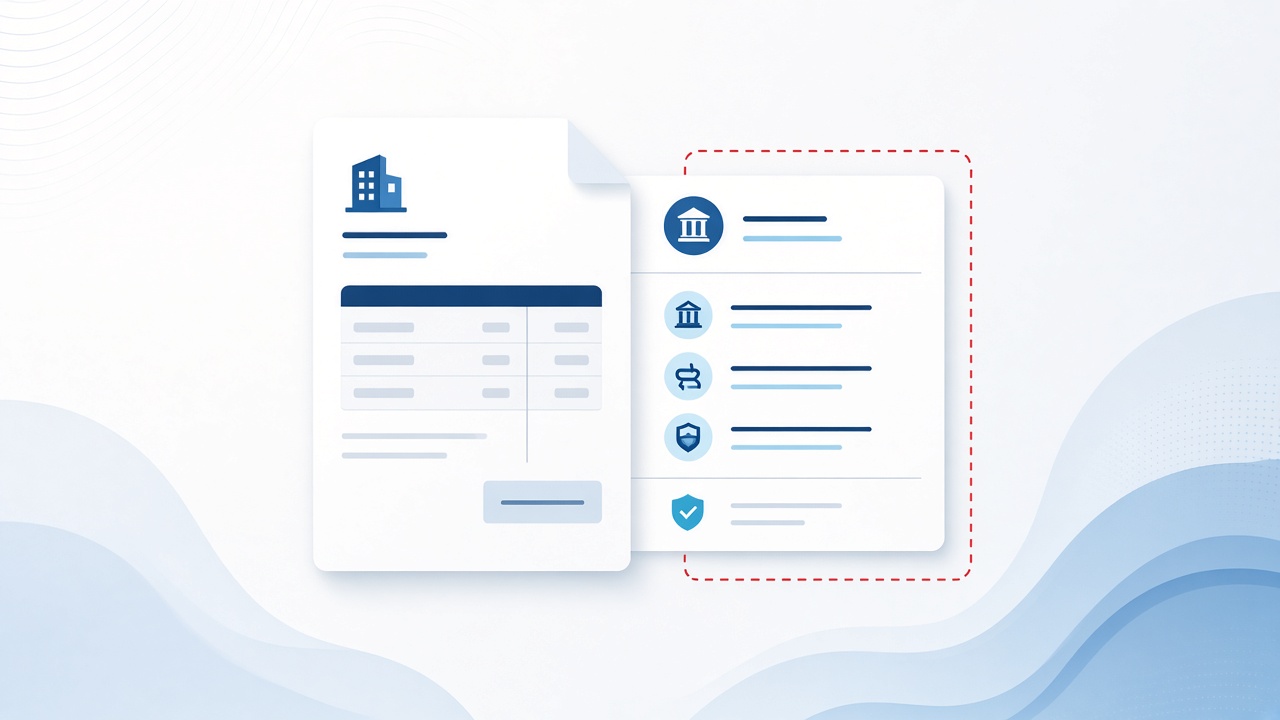
Vendor invoice redirect
A real vendor thread gets spoofed or a mailbox is taken over. The update looks routine: new remittance account, accounts payable moved, updated ACH details. Payment goes to the criminal’s account. IC3 and the Secret Service both describe this impersonation-and-instruction pattern as core BEC tradecraft.
Executive / authority fraud
A message that looks like it came from a principal or CFO: urgent, confidential, “I’m in meetings — wire this today.” Urgency is the feature. The Secret Service advisory flags false urgency and unreachable executives as common pressure tactics.
Fresh example: on September 10, 2026, Microsoft described a short burst of more than a million financial-fraud emails (87.7% of targets in the U.S.). Actors impersonated company executives, attached a fabricated vendor invoice, faked a forwarded thread, and pushed AP to process an ACH of nearly $50,000 — with indicators consistent with generative-AI template help. Lookalike domains were part of the kit. Microsoft found no evidence the real vendors were compromised; it was impersonation.
Lookalike domains and display-name tricks
Attackers use near-miss domains (for example, vendor-company.com versus vendor-compamy.com), or a display name that matches a trusted person while the actual address does not. Mobile mail clients make this easier to miss — which is why IC3 recommends enabling full email address display and verifying the real address.
Mailbox compromise, then patience
After phishing or intrusion, attackers often watch mail quietly: forwarding rules, invoice timing, who approves what. Then they insert themselves into a live thread. Secret Service notes monitoring victim email and joining conversations as trusted contacts.
AI-assisted wording
IC3’s 2025 report notes that generative tools can produce official-sounding executive or vendor email. Businesses reported over $30 million in losses to BEC scams with an AI nexus in 2025 — real, but small next to the overall ~$3 billion loss figure. Treat polished grammar as irrelevant; verify the request, not the prose.
Municipal AP, clinics, nonprofits, and mid-size vendors in Bakersfield and Kern County often share the same workflow: email, PDF invoice, and ACH change. That workflow is exactly what these attacks target.
MFA gaps that still feed business email compromise
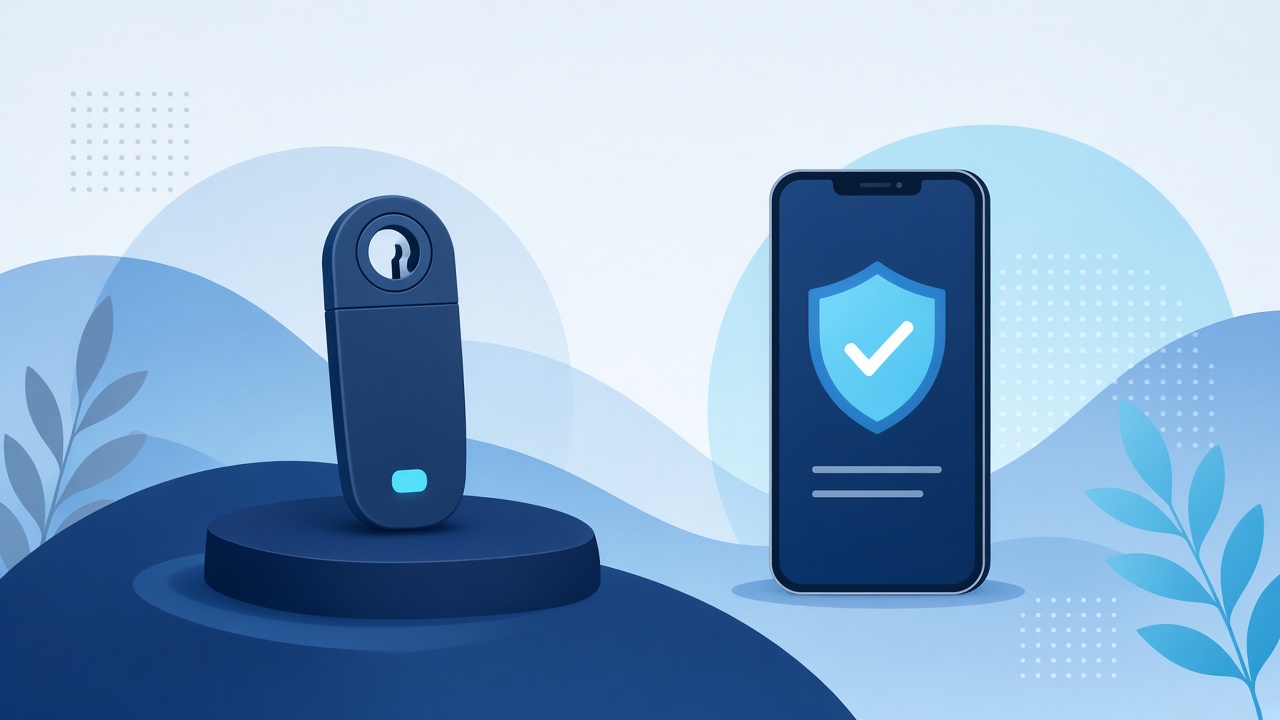
“We have MFA” is not the same as “MFA stops business email compromise.”
CISA’s guidance is explicit: any MFA beats passwords alone, but phishing-resistant MFA (FIDO/WebAuthn or PKI-based methods) is the standard organizations should migrate toward. See CISA’s Implementing Phishing-Resistant MFA and More than a Password.
Common gaps that still matter for email and finance accounts:
- No MFA on email / legacy auth — Password spray or leaked credentials can mean a full mailbox. Microsoft notes the vast majority of password spray and credential stuffing against Entra uses legacy protocols that skip modern MFA.
- SMS or voice OTP — Easy to socially engineer; SIM-swap risk.
- Push MFA without number matching — MFA fatigue / push bombing, where users approve prompts just to make them stop. CISA recommends number matching as an interim control.
- OTP / MFA codes given to “support” — FBI IC3’s Nov 2025 PSA on account takeover via financial-institution impersonation describes criminals tricking people into handing over MFA/OTP codes. The same pattern shows up in Microsoft 365 IT-support lures.
- Adversary-in-the-middle (AiTM) phishing — A fake login page proxies the real login and captures the session. Basic MFA can succeed for the attacker. Phishing-resistant MFA is designed to break this.
- OAuth / device-code token theft — FBI IC3’s May 21, 2026 Kali365 PhaaS PSA: the victim enters a device code on a legitimate Microsoft page; the attacker gets OAuth tokens and stays in Outlook, Teams, and OneDrive without further MFA. Mitigate with Conditional Access that restricts device-code flow.
- Finance accounts treated like everyone else — AP and executives need stricter Conditional Access, not the same baseline as a shared kiosk.
Microsoft’s guidance aligns: require MFA via Conditional Access (and consider authentication strengths / phishing-resistant methods) — see Require multifactor authentication for all users.
Bottom line: MFA is necessary. MFA that can be phished or talked out of a user is not sufficient for high-risk mailboxes and payment roles that business email compromise targets.
How to reduce business email compromise risk
Identity and mail controls
- Enforce MFA on Microsoft 365; plan phishing-resistant MFA (FIDO2 security keys, passkeys, or Windows Hello for Business where it fits) for admins, executives, and anyone who can move money.
- Turn on number matching for push MFA while you migrate.
- Block or tightly control legacy authentication.
- Restrict device-code and high-risk auth flows that enable token theft.
- Alert on new inbox rules, forwarding to external addresses, and atypical sign-ins.
- Use external email banners and show full SMTP addresses in Outlook.
Payment process controls
- Out-of-band verification for any bank-detail change or unusual wire — call a number you already have on file, not a number in the email (IC3 and Secret Service both stress this).
- Dual approval above a dollar threshold.
- A written AP playbook: who can approve, and what “urgent” never overrides.
- Vendor onboarding that confirms remittance details once, then treats changes as high-risk events.
Habits for anyone who pays invoices
- Slow down on urgency, secrecy, and “don’t tell anyone.”
- Check the real email address, not just the display name.
- Never read MFA codes aloud to someone who called or emailed you.
- If a vendor changed banks, call them on a known number before you pay.
- Report odd payment requests to IT before you click or reply with more info.
If you think business email compromise already hit a payment
- Call your bank immediately — request a recall or reversal and Hold Harmless / Letter of Indemnity paperwork.
- Preserve emails, headers, and transaction details — don’t wipe the mailbox.
- File at ic3.gov.
- Reset credentials; have IT hunt for forwarding rules and persistence.
- Do not continue using a compromised mailbox to talk to law enforcement (Secret Service).
How LTS can help
LTS helps Kern County organizations tighten the layers BEC actually hits: Microsoft 365 identity and Conditional Access, cybersecurity monitoring, and co-managed IT alongside your internal team — so finance process and technical controls move together. For a practical review of MFA coverage, mailbox hardening, and AP verification workflow, speak with an engineer.
Related: Managed IT · Microsoft 365